
From time-to-time, Samsung will release updates to the operating system and/or firmware on your mobile phone (these may introduce new features or improve security and stability). From time to time, the OTA (over-the-air) update may fail. The steps below show how to apply these updates using your PC.
- Ensure your device is charged to 50% (or more)
- As a precaution, copy photos etc to your PC or SD Card. Remove your SD Card.
- Download and Install the Smart Switch software to your computer from here
- Plug your phone into your computer using your USB cable
- If your device asks for permission to connect to your computer, tap ALLOW
- Open Smart Switch on your computer, if this isn't already open, you should see the screen below
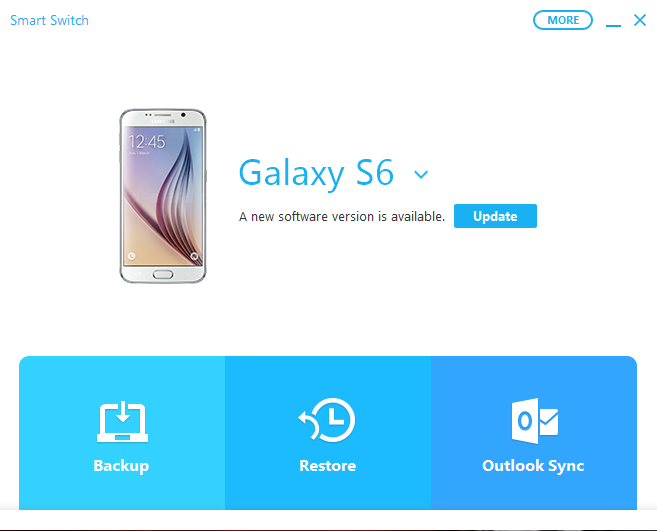
- Click the Update Button, you will then see the screen below (note that the version numbers may be different for you)
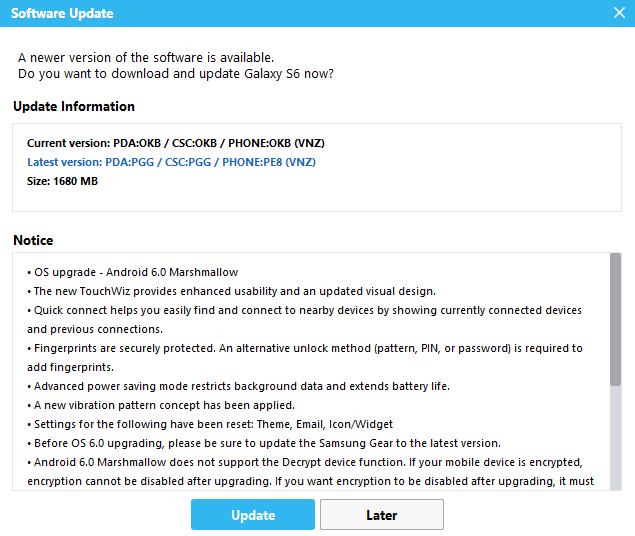
- Click Update. The following screen will then pop up
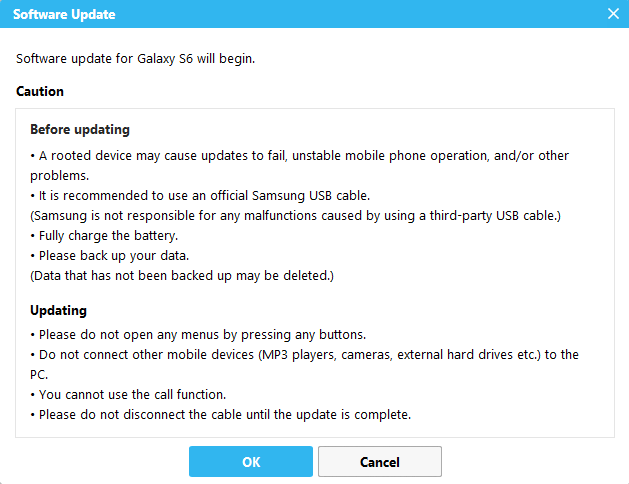
- Click OK. Your computer will show the screen below, which means it is downloading and applying the update to your phone.
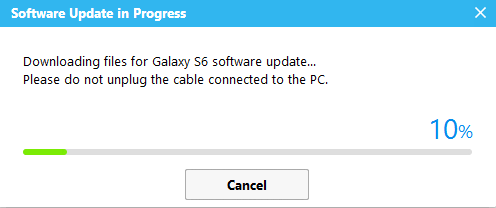
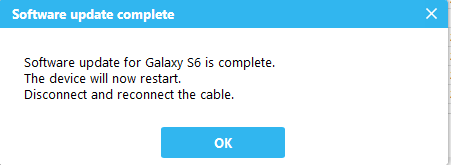
- Once the update has downloaded and applied (your phone may restart a few times), you will see the screen below, follow the instructions and click OK. Your phone will be ready for use when you see the normal unlock screen.
Comments
0 comments
Please sign in to leave a comment.